 AudiOrange
AudiOrange developped by River East Rise
.png)
Manual
See and find how to operate the app. Touch a portion of the image you want to know and you can get its description.
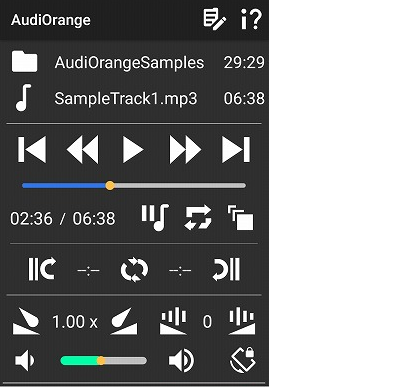
 Main Screen
App Bar
Input Control Section
Playback Control Section
Basic Playback Functions
Enhanced Playback Functions
Partial Playback
Output Control Section
Setlist
Setlist Center
Setlist Editor
Manual Page
Main screen
AudiOrange has App Bar and 3 control sections.
・ App Bar has icons to Setlist Center and Manual Page.
・ Input Control Section selects a track to playback.
・ Playback Control Section provides functions to contorol playback.
・ Output Control Section affects audio output.
App Bar
There are 2 icons here. Tap and move to Setlist Center or Manual Page.

 |
Tap and move to Setlist Center page and to create or edit Setlist. |
 |
Tap and move to Manual Page. Get information around Icon Help, Features and Tips, Question & Answer, Revision history, and Important Information including Privacy Policy and End User License Agreement. |
[Input Control Section] - Track Selection
Track selection employes the Integrated Interface that combines selected item display and selection actions into one.
A selected Basket Type and name, and track name are memorized. The previous selection appears again when the same Type selected.

[Basket Type]
The first column is a basket type, container that organizes audio tracks based on the following classifications.
There are 4 types:
 | tracks are put together under folder names in a device. The field next to the icon displays a folder name selected. |
- Album
 | tracks are put together under album names. The field next to the icon displays an album name selected. |
- Artist
 | tracks are put together under artist names. The field next to the icon displays an artist name selected. |
- Setlist
 | tracks are put together under Setlist names. The field next to the icon displays an Setlist name selected. |
Tap the Basket Type icon and alter Basket in circulating manner, i.e., Folder, Album, Artist, Setlist, and then Folder again.
[Basket Name]

Tap the name field next to the Basket Type icon, then the drop down list appears for selecting a Basket Type name.
Total time of a selected Basket is displayed at the end.
[Basket Item / Track Name]

2nd column, shows a track name currently selected to playback.
Tap the name field next to the Basket Item icon, then the drop down list appears for selecting a track name in the selected Basket.
Track time is displayed at the end.
[Playback Control Section]
All playback control functions are put together here.
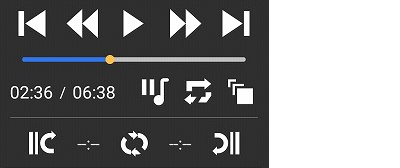
>Basic Playback Functions

- Play
 | Tap to start playback of the current selected track, then the icon turns to Pause. |
 | Tap to stop playback of the current track, then the icon turns to Play. |
- Skip Previous
 | Single-tap to move the playback position back to the beginning or start point while the playback position in the middle of a track. Single-tap when the payback position is at the beginning or Double-tap while the playback position is in the middle of a track, then moves the track back to the one previous. |
- Fast Rewind
 | Tap to put playback position back by 2 seconds. Long-tap to continue rewinding continuously. |
- Fast Forword
 | Tap to put playback position forward by 2 seconds. Long-tap to continue forwarding continuously. |
- Skip Next
 | Tap to move to the track one next no matter where the playback position is. |
> Enhanced Playback Functions
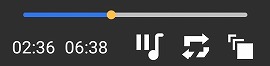
- Playback Bar

The orange dot shows the current playback position and moves along as playback progresses. Blue bar shows progress. Slide the dot back and forth or tap the bar to move playback position.
- Playback Time
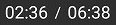
Left time shows current time and the right shows duration of the current track.
- Pause Per Track
offers automatic pause insertion between tracks. Playback automatically pauses before the next track starts, and press play button to start the next track.
 | Pause Per Track On (default): Playback stops at every playback completion, the next track is set, and waits in pause state. Tap to turn it off. |
 | Pause Per Track Off: Playback continues over tracks. Tap to turn it on. |
- Repeat
 | Repeat On: the current track is repeatedly selected. Tap to turn it off. |
 | Repeat Off (default): the next track is selected after the completion of playback. Tap to turn it on. |
- Fade to stop
 | Tap the button, then gradually the volume is turned down for 3 seconds, finally turns to pause. |
> Partial Playback
repeats playback between the designated start and return points.

- Start Point
 | Tap and set the current playback point to the start point. It is memorized as a track unique parameter. Long-tap and delete the start point. |
- Return Point
 | Tap and set the current playback point to the return point. Long-tap and delete the return point. It is memorized as a track unique parameter. |
- Partial Playback Off
 | Showing Partial Playback is off (default). Set both the start point and the return point, then tap and turn Partial Playback On. |
- Partial Playback On
 | Showing Partial Playback is on. Tap and turn Partial Playback Off. Partial Playback turns to off when a new track is selected. |
Partial Playback is available only when both the start point and the return point are set.
Below, the start point is set to 1:41, the return point to 2:33, and partial playback is turned on.

[Output Control Section]
This section changes the audio output.
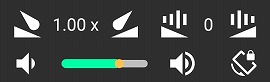
> Speed change
Speed up and down buttons allow change the speed from 0.50 (half) to 2.00 (2 times). 1.00 is normal speed and default speed.
It is memorized as a track unique parameter.
- Speed Down
 | Tap and decrease the playback speed. |
- Speed Up
 | Tap and increase the playback speed. |
Playback at 95% speed is below

> Pitch change
Pitch up and down buttons allow change the pitch from octave down to octave up in semitone intervals. Playback with no pitch change is 0.
It is memorized as a track unique parameter.
- Pitch Down
 | Tap and decrease the playback pitch by half tone. |
- Pitch Up
 | Tap and increase the playback pitch by half tone. |
Playback at a half-step down is below.

> Volume Control
Volume up, down, and Volume Bar allows playback volume to change from mute to maximum.

- Volume Bar
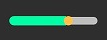
The orange dot shows the current volume and moves along as volume changes. Green bar shows volume level. Slide the dot back and forth or tap the bar to turn volume up and down.
- Volume Down
 | Tap to turn audio volume down. The icon turns to muted when reaches at the minimum. |
- Volume Muted
 | Showing volume is muted. The volume is at minimum or the device is in Do Not Disturb mode. |
- Volume Up
 | Tap to turn audio volume up. |
- Screen locked
 | Screen Rotation is Locked. |
[Setlist]
Setlist acts like a special virtual folder (playlist) that holds a list of tracks arranged in the order in which they are playbacked. It bundles tracks on your device into groups with any name.
Setlists can be used for gigs, gig planning, practice, and rehearsal. Or you can put together audio materials for language learning.
Setlist function consists of two screens: Setlist Center and Setlist Editor. See how they work below.
[Setlist Center]
The list of setlist with name, number of tracks, and total time will be displayed.
Tap the setlist you want to handle in the list and turn it selected. The selected setlist will be displayed in bold and italics. Then, tap Add, Edit, Delete, Undo, and Redo to handle and manage your setlists.
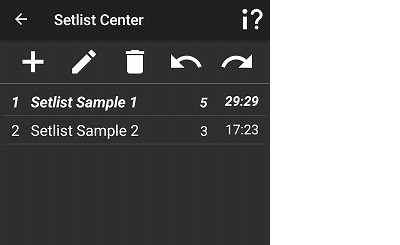
- Back to Main Screen
 | Close Setlist Center and go back to Main Screen. |
- Manual Page
| Manual Page for Setlist Center. |
- Add
 | Tap to open Setlist Editor as a new setlist. |
- Edit
 | Tap and select a setlist you want to edit, then tap the icon to open Setlist Editor with a selected setlist. |
- Delete
 | Tap and select a setlist you want to delete, then tap the icon to delete the setlist. |
- Undo
 | Tap to undo the previous action. |
- Redo
 | Tap to redo the undo action. |
- List of setlists
Setlist name, number of tracks, total time appears in one row. Tap a row and select a setlist to handle. A selected row turns to bold and italic.
[Setlist Editor]
In the setlist editor, arrange your tracks in the list in the order you want. You can select any track you have on your device.
Tap the field next to Setlist icon to enter or rename the setlist name.
Select your favorite track in the same way as on the playback screen, then tap Insert a track button to insert the track into the list.
Tap a track you want to handle in the list to turn is selected. The selected track will be displayed in bold and italics.
Tap the Move Up or Move Down buttons to change the playback order.
To remove a track from the list, select the track you want to remove from the list and tap the Remove a track button.
These actions can be undone or redoed.
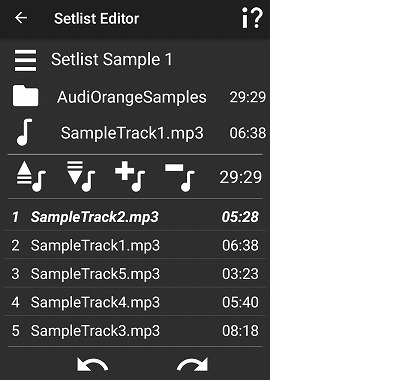
- Back to Setlist Center
| Close Setlist Editor and go back to Setlist Center. |
- Manual Page
| Manual Page for Setlist Editor. |
- Setlist name
| Tap the field next to the Setlist icon to open keyboard pad, enter a setlist name or rename the setlist name. |
- Integrated Input Control Section
Select a track you want to put in your setlist with the same manner as the Integrated Input Control Section in the main screen.
- Move up
 | Move the selected track one up in the list, one position earlier in playback order. |
- Move down
 | Move the selected track one down in the list, one position later in playback order. |
- Insert a track
 | Insert the selected track just below the selected row. Playback order is updated. |
- Remove a track
 | Remove the selected row away from the list of tracks. Playback order is updated. |
- Setlist time
Shows total time of the current Setlist.
- List of tracks
Playback order, track name, and track time appears in one row. Tap a row and select a track to handle. A selected track turns to bold and italic.
- Undo
| Tap to undo the previous action. |
- Redo
| Tap to redo the undo action. |
[Manual Page]
is the in-app information page that offers Icon Help, Features and Tips, Questions & Answers, Revision History and End User License Agreement and Privacy Policy.Tap a button and show information you want to know on the content area.
Check Mark appears on the top left corner of the selected one.
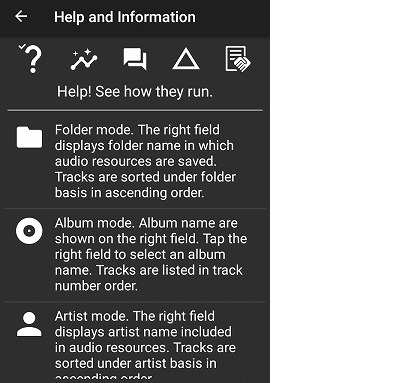
- Back to where it came from
| Close Information-Bulletin page ang go back to where it came from. |
- Help
 | Explanation to buttons and icons. |
- Features and Tips
 | Information around how to use AudiOrange. |
- Question and Answer
 | Find questions and answers. |
- Revision History
 | Find app release and revision information. |
- End User License Agreement
 | Find End User License Agreement and Privacy Policy here. |
- Content display section
Information of the checked item appears. Scroll up or down to find things you want to know.